How to Setup Your UPS with UPSmart Software
Complete guide for installing and configuring UPSmart monitoring software for your Uninterruptible Power Supply
System Requirements
- Windows 7/8/10/11 (32-bit or 64-bit)
- Available USB port
- Administrator privileges for installation
- Minimum 100MB free disk space
- Compatible UPS with EA protocol (G3/G2)
Download UPSmart Software
Download the official UPSmart monitoring software for EA protocol compatible UPS devices
📥 Download UPSmart SoftwareFile: UPSmart for EA protocol (G3 G2).zip
Installation Steps
Turn off your PC and unplug its power cable from the mains. Connect the USB cable from the UPS to the PC. Connect the UPS input power cable to a mains power point. Plug the PC power cable to one of the UPS output power sockets.
Turn on the UPS by holding the button until it powers-on. Then power-on your PC.
Download the software from the link above. Extract the zip file and run the installer. Follow the on-screen instructions to complete the installation.
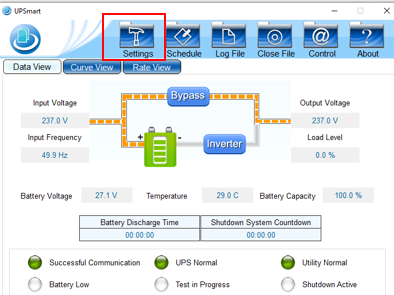
Run the software and click Settings.
Select MEGA(USB) from the available Communication Ports and press OK.
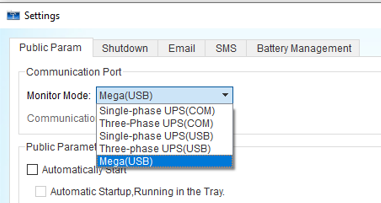
If Windows does not show MEGA(USB): Click Start and search for "Optional Updates", choose "View Optional Updates" from the list, download and install any Driver Updates for USB devices, then restart your PC.
Make sure the software is configured to start automatically by ticking the appropriate boxes in Settings. This ensures the UPS monitoring software runs when Windows starts.

Initial Configuration
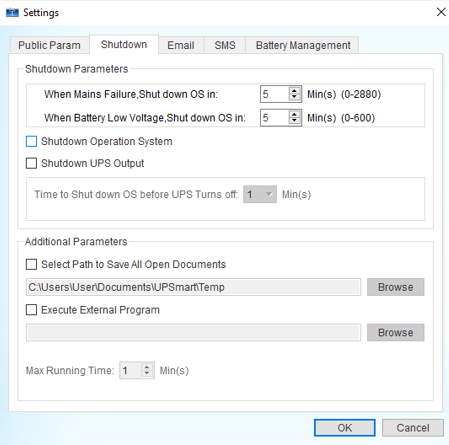
Click the Shutdown tab. Pick a time and tick the box for Shutdown Operation System. Click OK. This will ensure your PC shuts down gracefully in the event of a power failure.
Key Features
- Real-time Monitoring: View UPS status, battery level, load, and power conditions
- Event Logging: Track power events, outages, and battery status changes
- Automatic Shutdown: Safely shut down your computer during extended power outages
- Email Notifications: Receive alerts about power events via email
- Scheduled Testing: Automated battery and self-tests
- Data Logging: Export power quality data for analysis
- Please only use the UPS to power a PC. It should not be used to power devices that draw a lot more power, such as laser printers.
- If you use the UPS to just power a very small load, such as a plugpack, the UPS may not be able to detect this load and may shut down.
- The batteries inside the UPS should last several years, but will vary depending on your usage case. You should test them annually and replace any that fail.
- MP5205 takes one SB2486 battery, MP5207 takes two SB2486 batteries.
Troubleshooting Common Issues
UPS Not Detected
- Check USB cable connection on both ends
- Try a different USB port
- Restart the UPSmart service in Windows Services
- Reinstall USB drivers from Device Manager
Communication Lost Error
- Ensure no other UPS software is running
- Check Windows Firewall settings
- Verify the correct COM port in settings
- Update to the latest version of UPSmart
Software Won't Start
- Run as Administrator
- Check for Windows updates
- Reinstall Microsoft Visual C++ Redistributables
- Disable antivirus temporarily during installation
Maintenance Tips
- Regularly check for software updates
- Perform battery tests monthly
- Review event logs for any recurring issues
- Keep UPS firmware updated when available
- Clean UPS vents periodically to prevent overheating
Questions? View the original guide at: Jaycar Support